


Is Laptop Battery Life Getting Too Long?
10 ways to boost your Windows laptop’s battery life!
You don’t have to buy a new laptop battery to get longer battery life.

We all dream of all-day battery life — the ability to use a laptop away from an outlet for an entire workday, or longer. But while everyone’s talking about the long battery life promised by new chips and upcoming CPUs, you don’t have to buy something new to enjoy better battery life this minute.
This collection of tips will give you more time on battery, whether you’re running Windows 11 or Windows 10. These are good even if you have a modern laptop with the latest hardware, too — you’ll get better battery life if you keep them in mind.
Windows battery life tip #1: Start saving
If you’re going to be away from a power outlet for a while or your laptop’s battery seems to be draining too fast, you’ll want to activate Battery Saver or Energy Saver. In this mode, Windows makes a variety of tweaks to lower power consumption — for example, it limits some background tasks and lowers your screen brightness. By default, Windows will automatically activate this option around 30% battery to save power. However, you can turn on battery saver whenever you like — or make Windows always enable this setting when you’re on the go.
On Windows 11, you turn on Battery Saver by clicking the system tray icons at the right side of your taskbar and clicking the “Battery Saver” or “Energy Saver” button. (The name depends on which version of Windows 11 you have.) If the option is grayed out, that’s because your computer is plugged in — you can only activate this option when you’re unplugged.
To make Windows use this mode automatically, head to Settings > System > Power & battery and tweak the options under “Battery Saver” or “Energy Saver.” If you set to “Always” automatically turn on, Windows will always use this feature whenever your laptop is running on battery power.
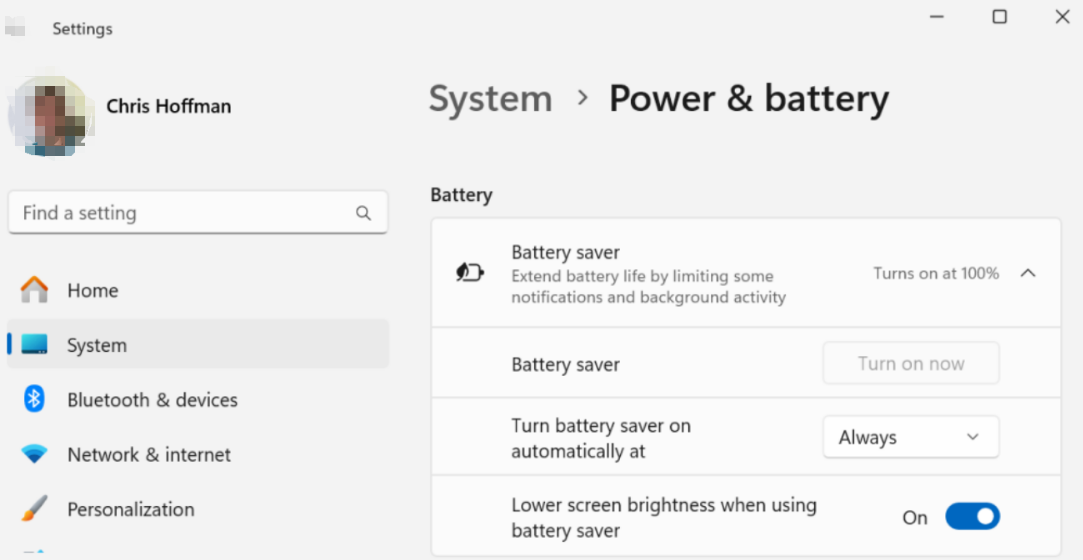
To turn on Battery Saver in Windows 10, click the notification bubble icon at the right side of the taskbar, click “Expand” if you don’t see all the icons, and then click the “Battery Saver” icon. To use this mode automatically, head to Settings > System > Battery and select “Always” under “Turn Battery Saver on automatically.”
Windows battery life tip #2: Power up your power mode
For maximum battery life, be sure to select the right power mode. By default, Windows often uses “Balanced” power mode. You can select “Best power efficiency” to save some battery power at the cost of a little bit of performance.To choose your power mode on Windows 11, go to Settings > System > Power & battery. Use the “Power mode” box to select “Best power efficiency” or at least “Balanced.” The “Best performance” setting will drain your battery faster.
On Windows 10, click the battery icon in your system tray and drag the slider to configure your power mode.


